How to Fix WhatsApp Not Downloading: 10 Easy Solutions
Is WhatsApp stuck on “Downloading”? Here are 10 ultra-realistic, tested fixes that work on Android & iPhone.
1 Check Your Internet Connection
Most download failures are just weak internet. Switch between Wi-Fi and mobile data, or move closer to your router. Try opening YouTube to test if internet is working.

2 Check Phone Storage
If your storage is full, WhatsApp can’t save anything. Go to Settings > Storage and make sure you have at least 1GB free.

3 Fix Date & Time
Wrong date/time blocks WhatsApp servers. Turn on Automatic date & time and Automatic time zone.

4 Clear WhatsApp Cache (Android)
Go to Settings > Apps > WhatsApp > Storage & cache > Clear cache. Don’t tap Clear Storage – that deletes chats.

5 Check App Permissions
WhatsApp needs Files and Media permission to save photos/videos. Settings > Apps > WhatsApp > Permissions > Allow all.

6 Restart Your Phone
A quick restart fixes temporary glitches and frees RAM.

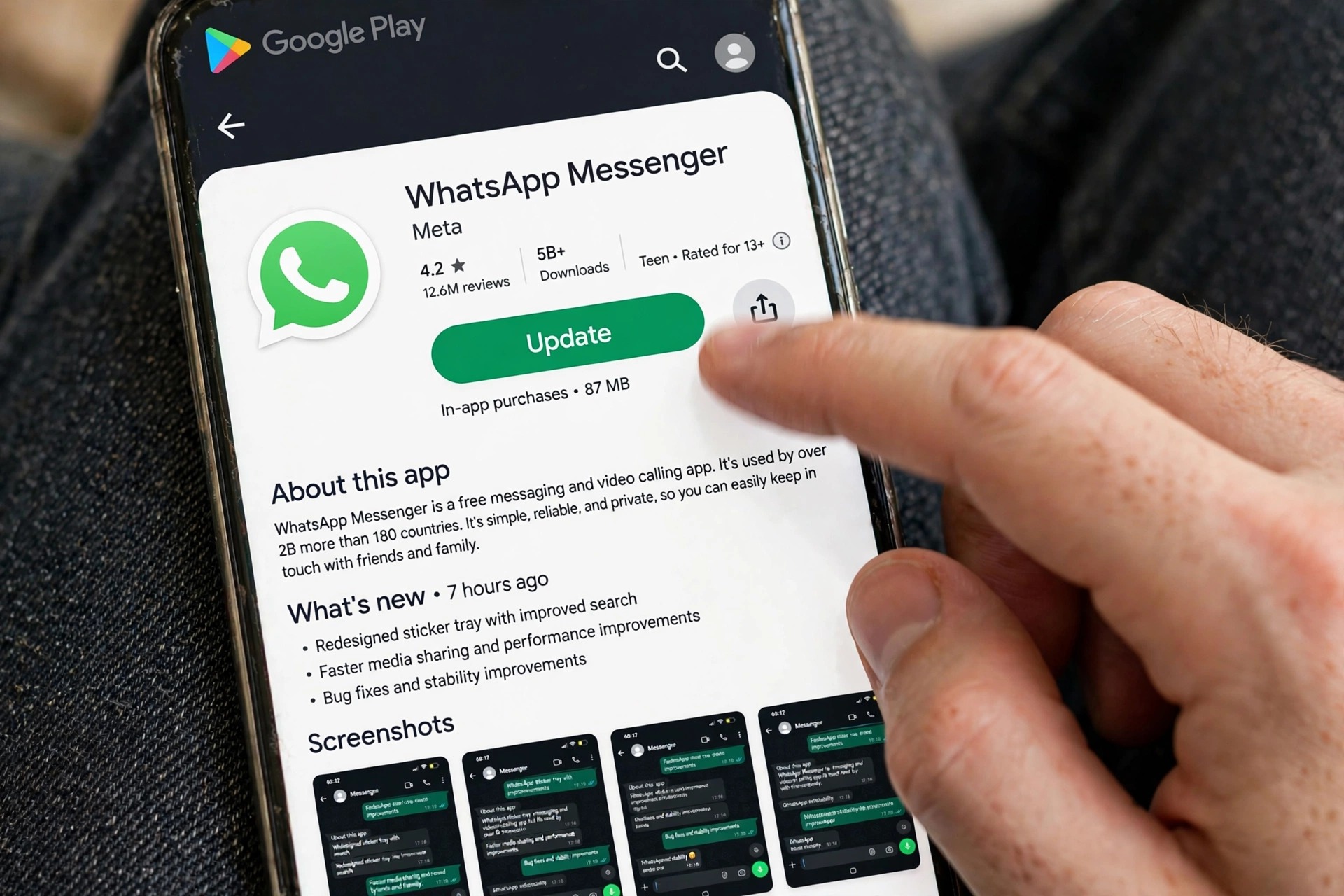
7 Update WhatsApp
Old versions have download bugs. Open Play Store / App Store and tap Update.

8 Free Up Space
File Manager > WhatsApp > Media > Delete old large videos and .Statuses. This frees up instant space.

9 Check SD Card
If you use an SD card, it might be corrupted or read-only. Remove, clean, and reinsert, or set storage to Internal.

10 Test Download Again
Open WhatsApp and download again – it should now work! If not, reinstall WhatsApp (backup first).
